> ## Documentation Index
> Fetch the complete documentation index at: https://docs.c3esports.com/llms.txt
> Use this file to discover all available pages before exploring further.
# Linking Discord
> Connect your Discord account to your C3 Esports profile — required to participate in matches.
Discord is the primary communication channel for C3 Esports. Linking your Discord account is **required** before you can join a team, check in to matches, or receive match notifications.
If you signed up using **Continue with Discord**, your account is already linked — you can skip to [setting up your profile](/getting-started/setting-up-your-profile).
 ***
## Why Discord is required
C3 Esports uses Discord for:
* **Team communication** — your manager and teammates contact you here
* **Match notifications** — reminders when your match check-in window opens
* **Staff support** — disputes, rule questions, and announcements happen in Discord
* **Identity verification** — your Discord username is displayed on your team roster so opponents and staff can identify you
Without a linked Discord account, you cannot appear in roster searches, and your manager will not be able to add you to a team.
***
## How to link Discord
Go to [c3esports.com](https://c3esports.com) and sign in to your account.
Click your avatar in the top-right corner and select **Dashboard → Profile** (or visit [c3esports.com/profile](https://c3esports.com/profile/settings) directly).
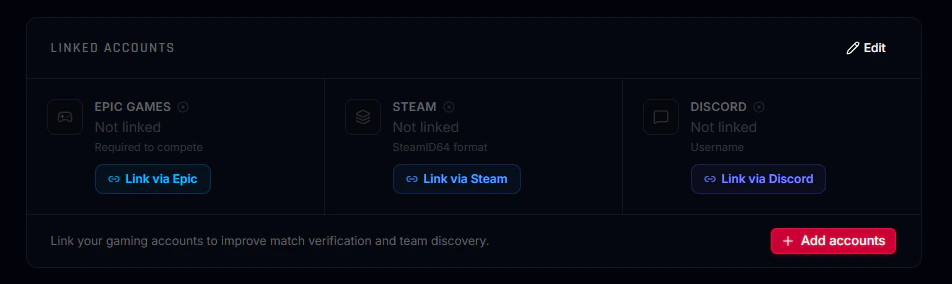
Scroll down to the **Linked Accounts** section. You will see a Discord section showing "Not linked."
***
## Why Discord is required
C3 Esports uses Discord for:
* **Team communication** — your manager and teammates contact you here
* **Match notifications** — reminders when your match check-in window opens
* **Staff support** — disputes, rule questions, and announcements happen in Discord
* **Identity verification** — your Discord username is displayed on your team roster so opponents and staff can identify you
Without a linked Discord account, you cannot appear in roster searches, and your manager will not be able to add you to a team.
***
## How to link Discord
Go to [c3esports.com](https://c3esports.com) and sign in to your account.
Click your avatar in the top-right corner and select **Dashboard → Profile** (or visit [c3esports.com/profile](https://c3esports.com/profile/settings) directly).
Scroll down to the **Linked Accounts** section. You will see a Discord section showing "Not linked."
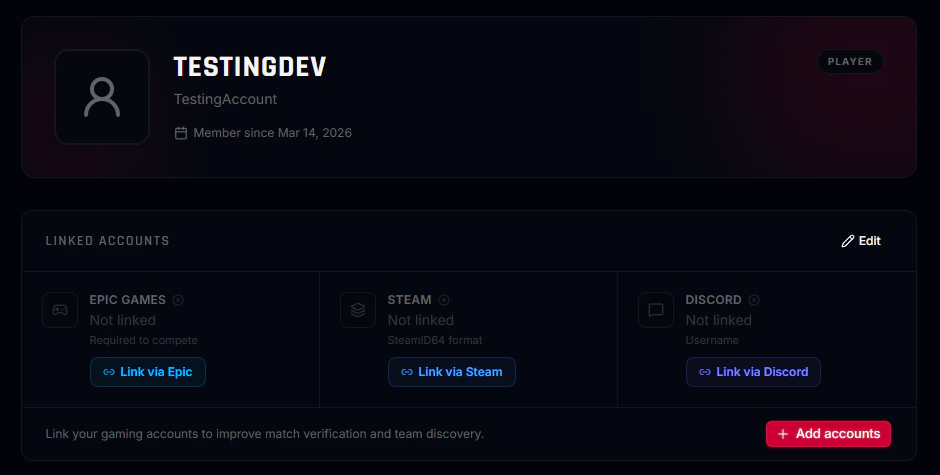
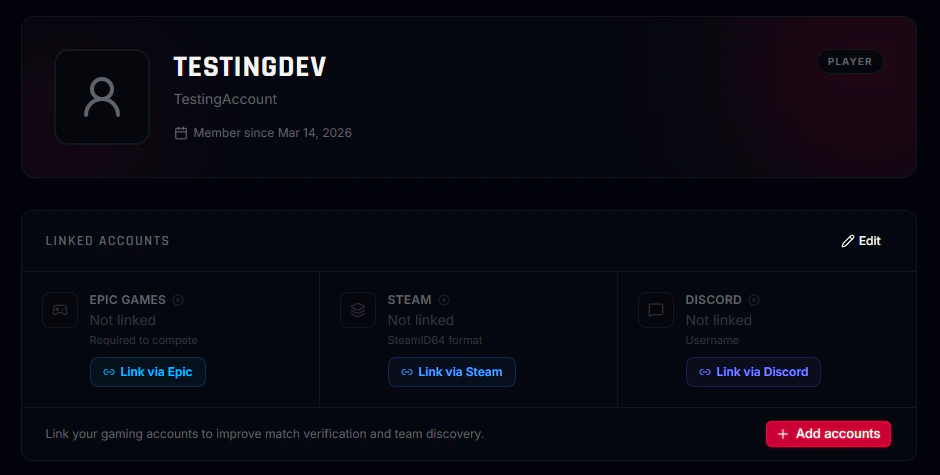 Click the **Link via Discord** button. A Discord authorization window will open in a new tab or pop-up.
Make sure you are logged into the **correct Discord account** before clicking Authorize. You cannot link a Discord account that is already connected to another C3 Esports profile.
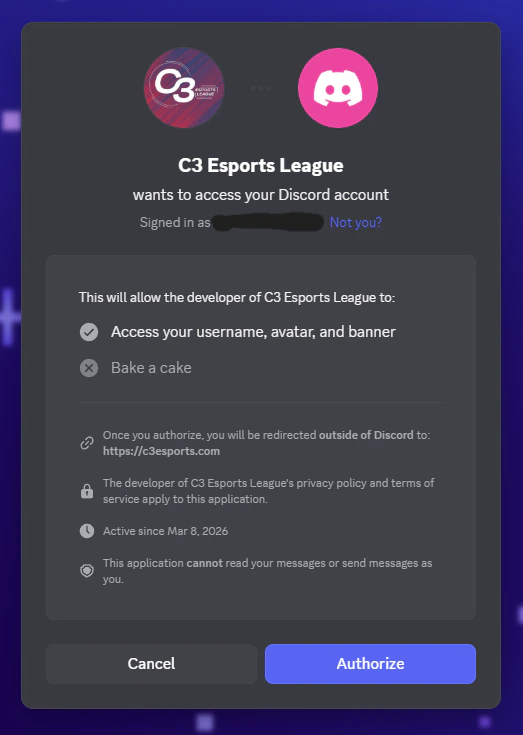
Review the requested permissions and click **Authorize**. Discord will redirect you back to c3esports.com automatically.
Click the **Link via Discord** button. A Discord authorization window will open in a new tab or pop-up.
Make sure you are logged into the **correct Discord account** before clicking Authorize. You cannot link a Discord account that is already connected to another C3 Esports profile.
Review the requested permissions and click **Authorize**. Discord will redirect you back to c3esports.com automatically.
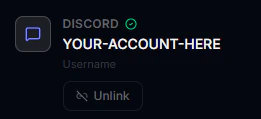
 After the redirect, your Discord username and avatar will appear under Connected Accounts. You are now fully linked.
 If the authorization pop-up does not open, your browser may be blocking pop-ups from c3esports.com. Check your browser's address bar for a blocked pop-up notification and allow it, then try again.
***
## What permissions C3 Esports requests
When you authorize, the platform requests only two Discord OAuth scopes:
| Scope | Purpose |
| - | - |
| `identify` | Reads your Discord username, discriminator, and avatar |
| `email` | Associates your Discord email with your account for deduplication |
We do **not** request permission to send messages as you, read your DMs, manage your servers, or join servers on your behalf.
***
## Troubleshooting
Each Discord account can only be connected to one C3 Esports profile.
* You may have previously registered with this Discord account. Try signing in at [c3esports.com/auth/signin](https://c3esports.com/auth/signin) using **Continue with Discord** to recover that account.
* If you believe this is an error, open a support ticket in the [C3 Esports Discord server](https://discord.gg/c3esports) and provide your Discord username and the email address on your current account.
Contact staff via a support ticket in the C3 Esports Discord. They can unlink the incorrect account so you can connect the right one. Include your C3 Esports username and the Discord username you accidentally linked.
This can happen if cookies or local storage were cleared mid-flow. Try again in a fresh browser tab. If the problem persists, try a different browser or disable any privacy extensions that block third-party cookies.
You must first unlink your current Discord account. Go to **Profile → Settings → Connected Accounts** and click **Disconnect** next to Discord, then follow the linking steps above with your new account.
You cannot disconnect Discord during an active season if you are on a registered roster. Contact staff if you need to make this change during a season.
This documentation is built and hosted on [Mintlify](https://mintlify.com), a developer documentation platform.
If the authorization pop-up does not open, your browser may be blocking pop-ups from c3esports.com. Check your browser's address bar for a blocked pop-up notification and allow it, then try again.
***
## What permissions C3 Esports requests
When you authorize, the platform requests only two Discord OAuth scopes:
| Scope | Purpose |
| - | - |
| `identify` | Reads your Discord username, discriminator, and avatar |
| `email` | Associates your Discord email with your account for deduplication |
We do **not** request permission to send messages as you, read your DMs, manage your servers, or join servers on your behalf.
***
## Troubleshooting
Each Discord account can only be connected to one C3 Esports profile.
* You may have previously registered with this Discord account. Try signing in at [c3esports.com/auth/signin](https://c3esports.com/auth/signin) using **Continue with Discord** to recover that account.
* If you believe this is an error, open a support ticket in the [C3 Esports Discord server](https://discord.gg/c3esports) and provide your Discord username and the email address on your current account.
Contact staff via a support ticket in the C3 Esports Discord. They can unlink the incorrect account so you can connect the right one. Include your C3 Esports username and the Discord username you accidentally linked.
This can happen if cookies or local storage were cleared mid-flow. Try again in a fresh browser tab. If the problem persists, try a different browser or disable any privacy extensions that block third-party cookies.
You must first unlink your current Discord account. Go to **Profile → Settings → Connected Accounts** and click **Disconnect** next to Discord, then follow the linking steps above with your new account.
You cannot disconnect Discord during an active season if you are on a registered roster. Contact staff if you need to make this change during a season.
This documentation is built and hosted on [Mintlify](https://mintlify.com), a developer documentation platform.